
Contact Form 7 to Google Sheets
Automatically save Contact Form 7 submissions to Google Sheets in real time. This workflow template eliminates manual data entry by sending form submissions directly to your selected spreadsheet whenever a visitor submits a Contact Form 7 form.
Whether you’re collecting leads, support requests, inquiries, or registrations, this template ensures all form data is organized and accessible in one central location.
Workflow Overview
Trigger: Contact Form 7 Form Submission
Action: Google Sheets → Add Row
Flow:
Contact Form 7 → Google Sheets
Use Cases
- Contact form inquiries
- Lead capture forms
- Customer support requests
- Service quote requests
- Event registrations
- Appointment booking forms
- Feedback and survey forms
Benefits
Automatic Data Storage
Every form submission is instantly added to your Google Spreadsheet without any manual work.
Centralized Lead Management
Keep all inquiries and leads organized in a single spreadsheet for easy tracking and follow-up.
Improved Team Collaboration
Allow sales, support, and marketing teams to access form submissions from Google Sheets.
Real-Time Synchronization
New submissions appear in your spreadsheet immediately after the form is submitted.
Supported Form Data
You can map any Contact Form 7 field to Google Sheets, including:
- Name
- Email Address
- Phone Number
- Subject
- Message
- Dropdown Fields
- Checkboxes
- Radio Buttons
- Hidden Fields
- Custom Fields
Setup Requirements
Before using this template:
- Connect your Google Sheets account.
- Select or create a Google Spreadsheet.
- Choose the Contact Form 7 form to monitor.
- Map form fields to spreadsheet columns.
- Activate the workflow.
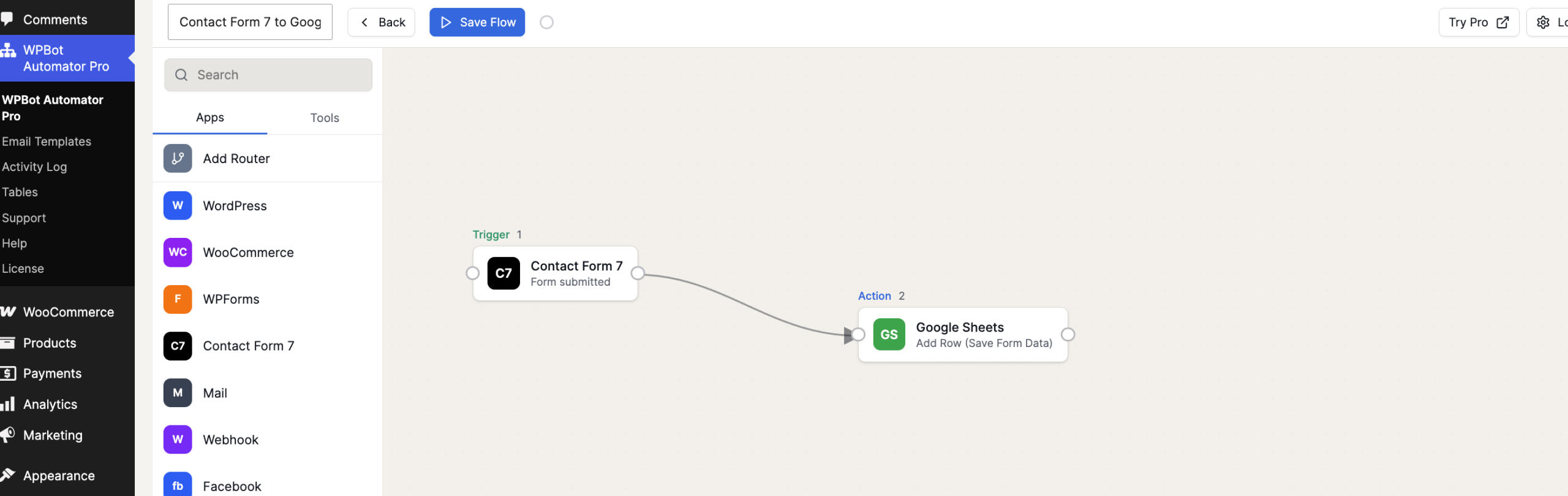
Once activated, every Contact Form 7 submission will automatically create a new row in your Google Sheet, helping you streamline lead collection, customer communication, and data management.