Step-by-Step Guide
Step 1: Open WPBot AI Settings
From your WordPress dashboard:
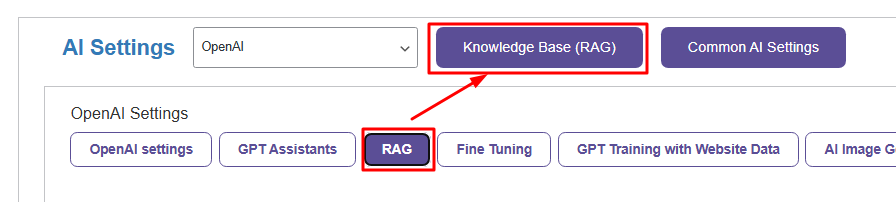
WPBot Pro → AI Settings
Then open:
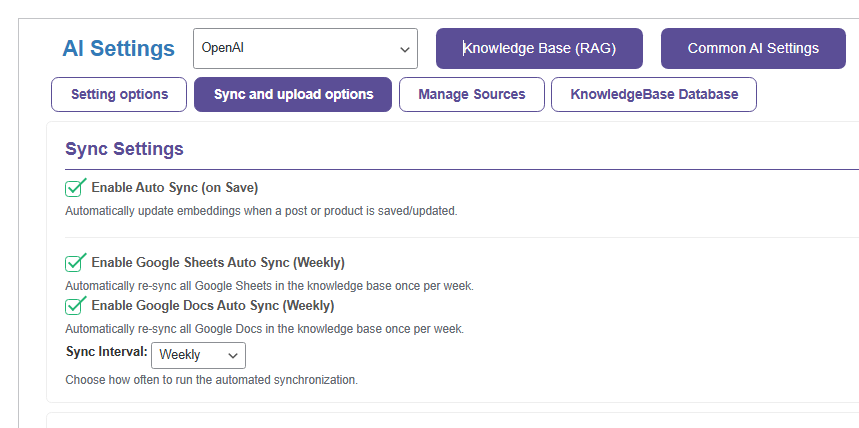
Knowledge Base (RAG) → Sync and upload options
You’ll see the Sync Settings section shown in the screenshot.
Step 2: Enable Auto Sync (Recommended)
Inside Sync Settings, enable:
Enable Auto Sync (on Save)
This option automatically updates embeddings whenever:
• A post is updated
• A page is edited
• A WooCommerce product is modified
• New content is published
What happens after enabling it?
Every time you press:
• Save
• Update
• Publish
WPBot will automatically:
1. Detect the content change
2. Create fresh embeddings
3. Update the vector database
No manual re-upload needed.
Step 3: Enable Google Docs Auto Sync
If you use Google Docs as a RAG source, enable:
Enable Google Docs Auto Sync (Weekly)
This automatically re-syncs your connected Google Docs regularly.
Step 4: Enable Google Sheets Auto Sync
If your knowledge base uses Google Sheets:
Enable Google Sheets Auto Sync (Weekly)
WPBot will periodically refresh the embeddings from your sheets.
Step 5: Choose Sync Interval
From the dropdown:
Sync Interval → Weekly
You can select how often WPBot should re-check external sources like:
• Google Docs
• Google Sheets
Step 6: Save Your Settings
After enabling the options:
Scroll down → Click Save Settings
Your automated RAG updating system is now active.