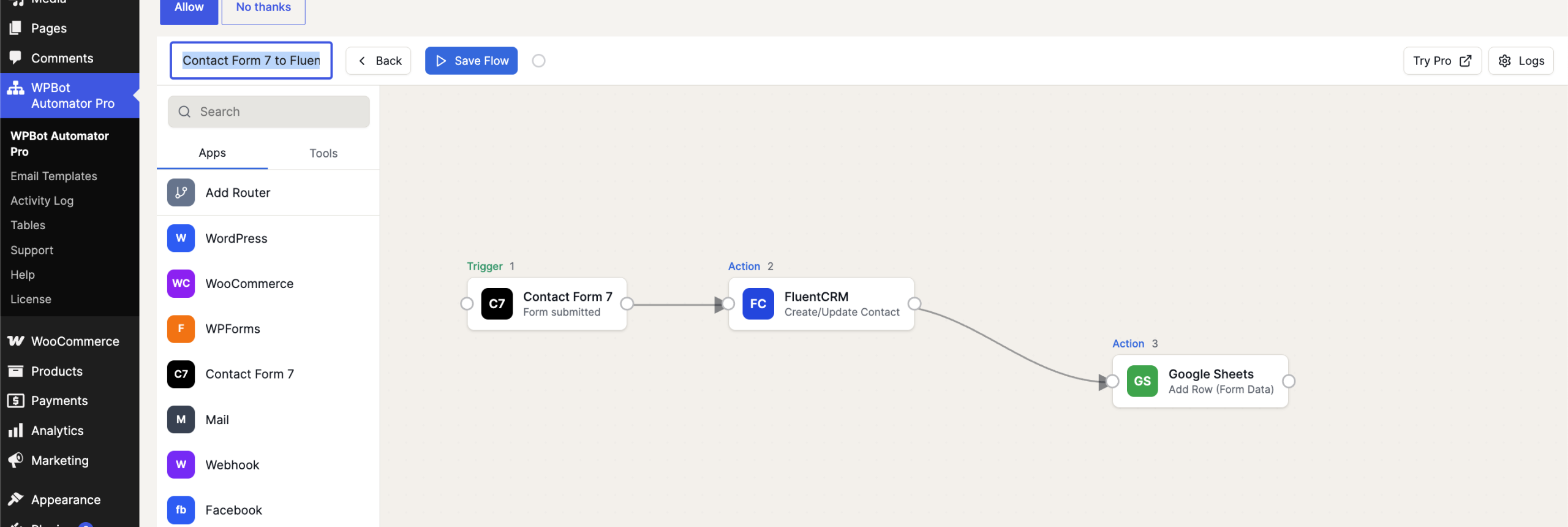
Contact Form 7 (CF7) is one of the most widely used form plugins for WordPress, but it doesn’t do much with your data after a user hits submit. If you want to automatically add those users to your FluentCRM email lists and archive their information in a Google Sheets spreadsheet, you usually have to connect a mess of external plugins.
Step 1: Set Up Your Contact Form 7 Trigger (Trigger 1)
First, we need to tell WPBot Automator Pro which form to listen to.
-
Open your WPBot Automator Pro dashboard and click Create New Flow.
-
From the left-hand Apps sidebar menu, click on Contact Form 7.
-
Select the trigger event (e.g., Form Submitted).
-
In the settings block, choose the specific form you want to target from your dropdown list. This block will sit on your canvas as Trigger 1.
Step 2: Add Contacts and Tags in FluentCRM (Action 2)
Next, let’s feed that subscriber data into your email marketing engine.
-
Drag a connector line from the output node of your Contact Form 7 trigger block out onto the canvas.
-
From the apps panel, select FluentCRM and choose the Create or Update Contact action.
-
Map your variables: Link the raw form inputs to your CRM fields:
-
Email: Match it to your CF7 email tag (e.g.,
[your-email]). -
First Name / Last Name: Map your name inputs accordingly.
-
-
Choose Status & Tags: Set the contact status to Subscribed and choose a target List or Tag (e.g., “Website Lead”) to segment your new subscribers automatically. This records on your canvas as Action 2.
Step 3: Log the Lead into Google Sheets (Action 3)
Finally, let’s make sure your sales team or analytics dashboard gets a copy of the data.
-
Drag a new connector line from the output node of your FluentCRM block down into a third block slot.
-
Select Google Sheets from your app library and select the Add Row action.
-
Connect your Google account, select your target spreadsheet, and pick the specific worksheet tab.
-
Map your final columns: Pair your spreadsheet headers with the dynamic data fields coming from the original form submission (such as Submission Date, Name, Email, and Message body). This completes the map sequence as Action 3