
To connect Facebook Lead Ads to Google Sheets using WPBot Automator Pro, you will leverage the Webhook / Integration feature inside your WordPress backend. Since WPBot Automator Pro runs natively on your WordPress database, it can act as the bridge to capture Facebook leads and parse them into external apps.
Here is a step-by-step framework to set up this specific automation pipeline:
Step 1: Set Up the Facebook Lead Ads Trigger
A native Facebook integration module.
-
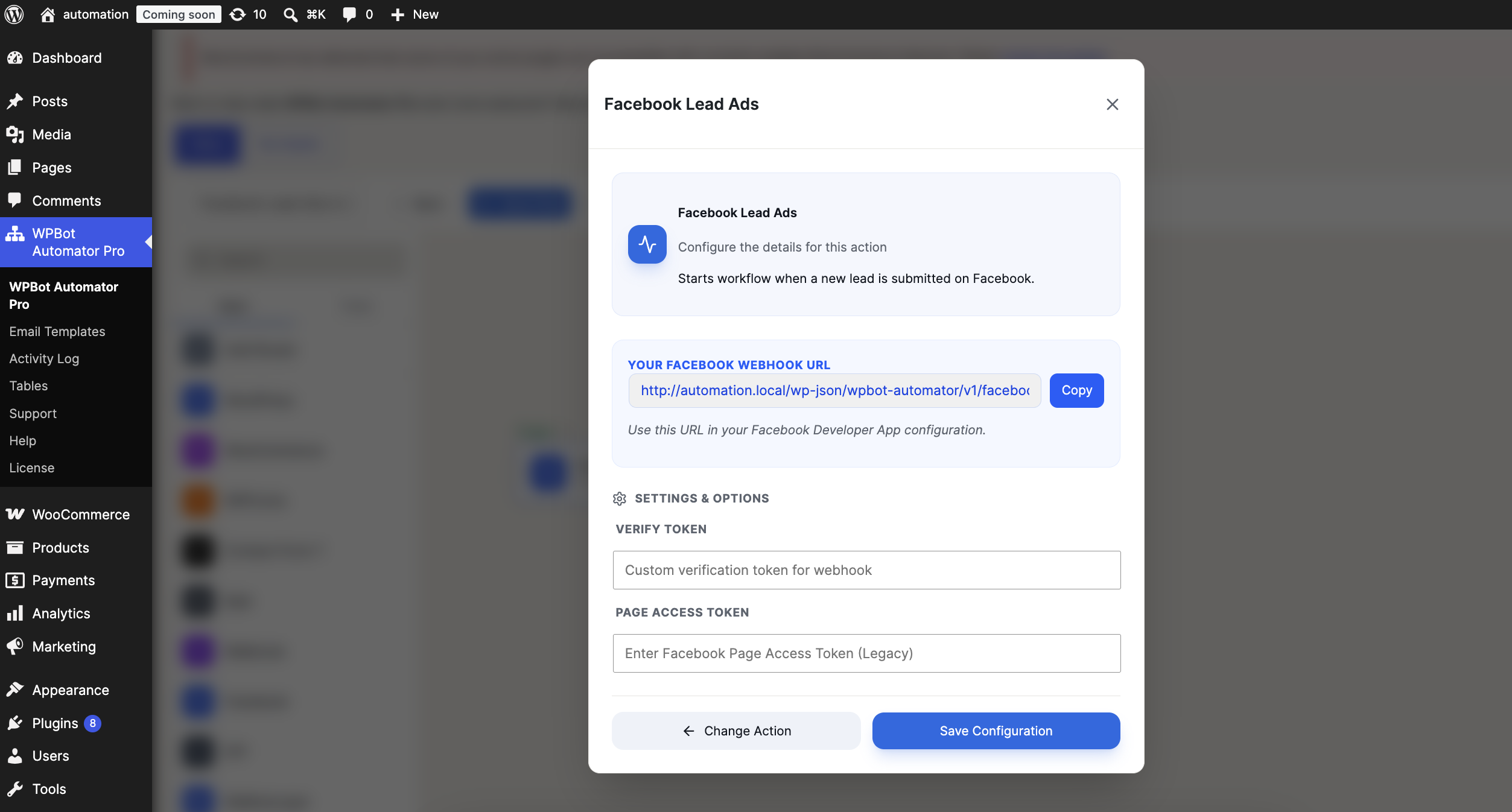
Open the Facebook Lead Ads action window in your automation workflow.
-
Copy your Webhook URL: Click the blue
Copybutton next to your unique generated URL (shown in your screenshot as[http://automation.local/wp-json/wpbot-automator/v1/facebook](http://automation.local/wp-json/wpbot-automator/v1/facebook)...). -
Set a Verify Token: In the
VERIFY TOKENfield, type a secure, custom phrase or random string of your choice (e.g.,MySecureToken2026). You will need to paste this exact token into your Facebook Developer settings so Facebook can verify your site. -
Add Page Access Token: Paste your legacy Page Access Token into the
PAGE ACCESS TOKENfield at the bottom. -
Click
Save Configuration.
Step 2: Configure Meta (Facebook) for Developers
Now, you need to tell Facebook where to send those leads when a form is submitted.
-
Log into your Meta for Developers dashboard and go to your App.
-
Add the Webhooks product to your app and select Page from the dropdown menu.
-
Click Configure a Webhook and paste the data from Step 1:
-
Callback URL: Paste the URL you copied from WPBot Automator Pro.
-
Verify Token: Paste the custom verification token you created.
-
-
Subscribe to the
leadgenfield feed so Facebook triggers your plugin whenever a new lead comes in.
 ‘
‘