
- What is MCP?
- Supported AI Clients
- Quick Start Guide
- Step 1: Enable MCP Server
- Step 2: Generate an API Key
- Step 3: Connect Your AI Client
- Claude Desktop
- Cursor
- VS Code
- Alternative: WordPress Application Password
- Available Tools (17)
- Workflow Management
- Monitoring & Logs
- Email Templates
- Automation Tables
- System
- Resources (7)
- Prompt Templates (4)
- Example Conversations
- “Show me my automations”
- “Create a new automation”
- “Why did my workflow fail?”
- “Give me stats”
- Technical Details
- Protocol
- Authentication Methods
Connect Claude, Cursor, VS Code, and any AI assistant directly to your WordPress automations.
What is MCP?
The Model Context Protocol (MCP) is an open standard created by Anthropic that lets AI assistants securely connect to external tools and data sources. Think of it as a universal plug — any AI that speaks MCP can instantly access your WordPress site’s automations without custom API code.
Note: Minimum WordPress version requirement: 7.0
With MCP support in WPBot Automator, your AI assistant can:
- 📋 List, read, and search your automation workflows
- ✏️ Create and edit workflows using natural language
- ▶️ Trigger workflows on demand with custom data
- 📊 Read execution logs and diagnose failures
- 🔧 Manage email templates and automation tables
- 🧠 Generate new workflows from plain-English descriptions
No custom API integration needed. Just connect and go.
Supported AI Clients
| Client | Status | Config Method |
|---|---|---|
| Claude Desktop | ✅ Fully Supported | claude_desktop_config.json |
| Cursor | ✅ Fully Supported | MCP Settings panel |
| VS Code (GitHub Copilot) | ✅ Fully Supported | .vscode/mcp.json |
| Windsurf | ✅ Supported | MCP config file |
| Any MCP-compatible client | ✅ Supported | HTTP endpoint + API key |
Quick Start Guide
Step 1: Enable MCP Server
- Go to WPBot Automator → 🤖 MCP in your WordPress admin
- Check “Enable the MCP server endpoint”
- Click Save Settings
Step 2: Generate an API Key
- On the same page, click “Generate API Key”
- Copy the full API key (you’ll need it in the next step)
Step 3: Connect Your AI Client
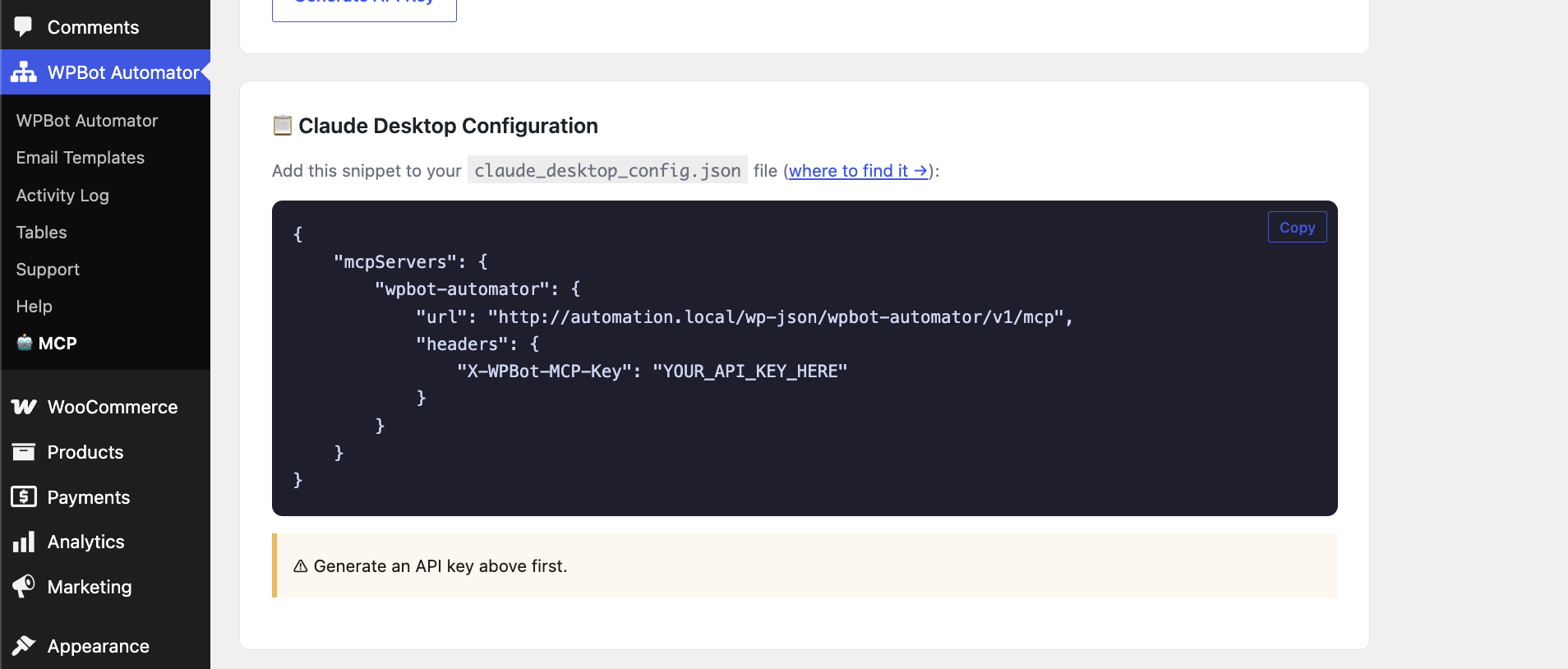
Claude Desktop
Open your claude_desktop_config.json file:
- macOS:
~/Library/Application Support/Claude/claude_desktop_config.json - Windows:
%APPDATA%\Claude\claude_desktop_config.json
Add this configuration:
Cursor
- Open Cursor Settings → MCP
- Click “Add new MCP server”
- Enter:
- Name:
wpbot-automator - Type:
sseorstreamableHttp - URL:
https://yoursite.com/wp-json/wpbot-automator/v1/mcp
- Name:
- Add the header:
X-WPBot-MCP-Key: your-api-key-here
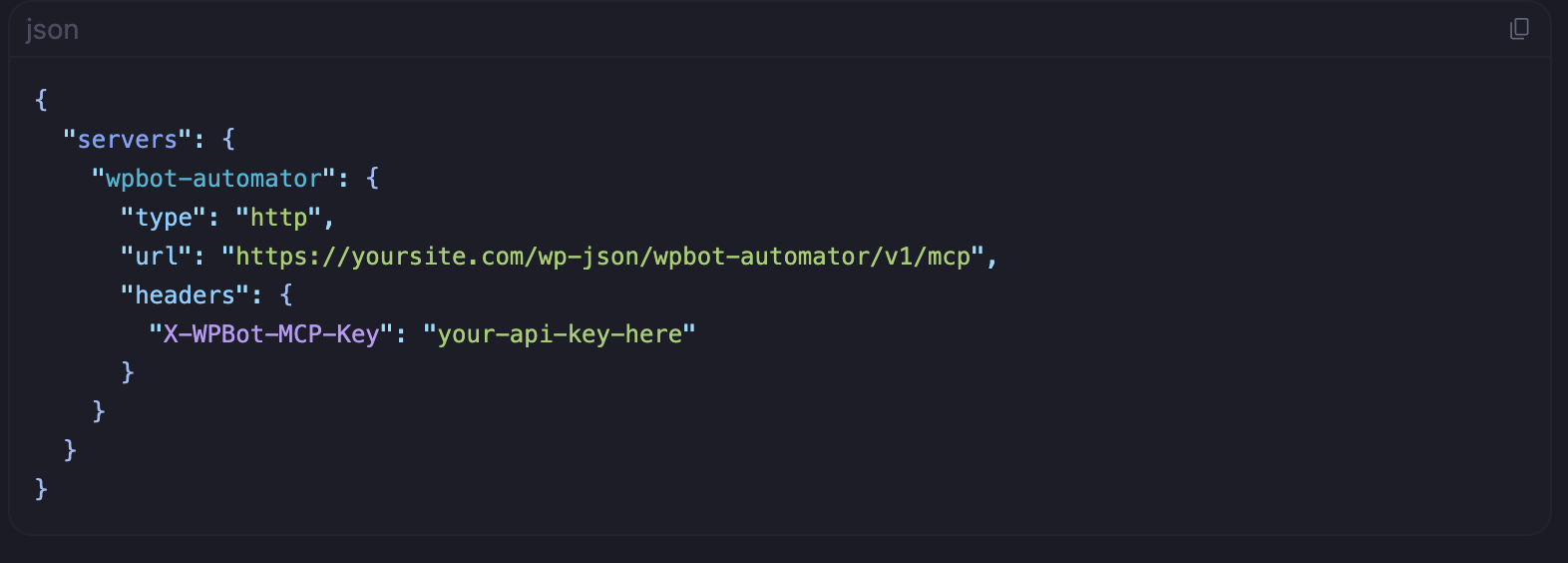
VS Code
Create or edit .vscode/mcp.json in your project:
Alternative: WordPress Application Password
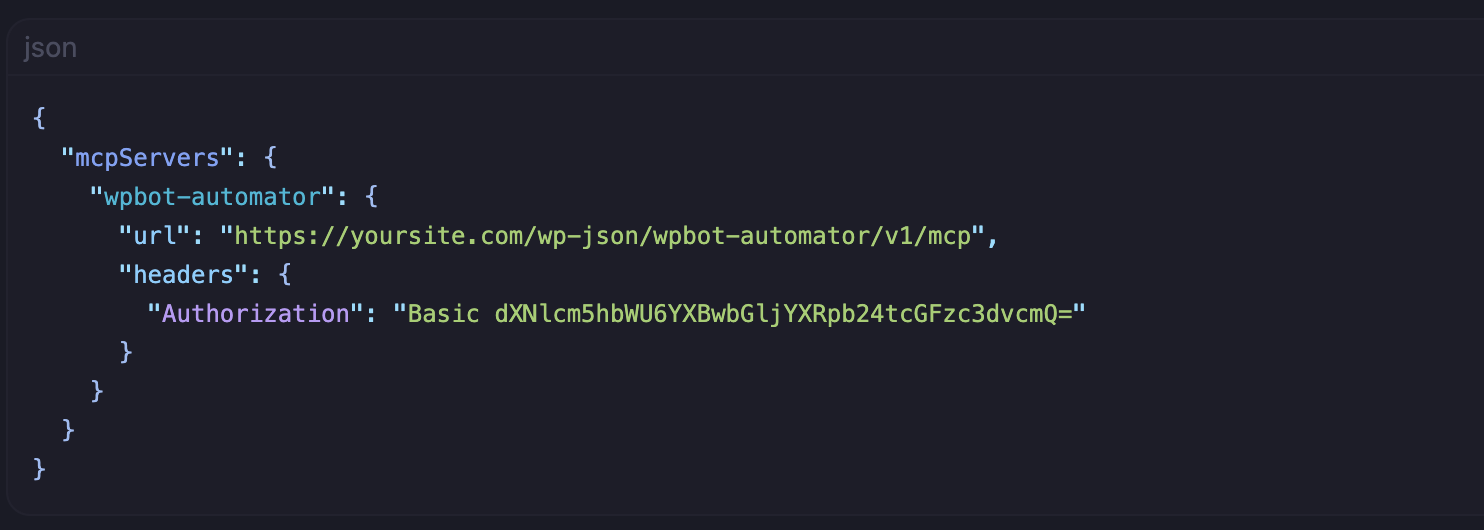
Instead of an API key, you can authenticate using a WordPress Application Password:
- Go to Users → Profile → Application Passwords
- Create a new application password
- Use
Authorization: Basic base64(username:password)header
Available Tools (17)
Once connected, your AI assistant can call these tools:
Workflow Management
| Tool | Description |
|---|---|
list_workflows |
List all automation workflows with optional status filter |
get_workflow |
Get the full node graph and configuration of a specific workflow |
create_workflow |
Create a new workflow with name, description, and node graph |
update_workflow |
Update any field of an existing workflow |
delete_workflow |
Permanently remove a workflow |
toggle_workflow |
Enable or disable a workflow without deleting it |
trigger_workflow |
Programmatically fire a webhook-triggered workflow with custom payload |
Monitoring & Logs
| Tool | Description |
|---|---|
get_activity_logs |
Retrieve recent execution logs (filterable by workflow, status) |
clear_logs |
Clear all logs or logs for a specific workflow |
get_workflow_stats |
Get execution statistics: success rate, total runs, last execution |
Email Templates
| Tool | Description |
|---|---|
list_email_templates |
List all saved email templates |
Automation Tables
| Tool | Description |
|---|---|
list_tables |
List all user-defined automation tables |
query_table |
Query rows from a specific table |
insert_table_row |
Insert a new row into a table |
System
| Tool | Description |
|---|---|
get_site_info |
Get site name, URL, WP version, plugin version, timezone |
list_available_actions |
List all registered action types in the plugin |
list_available_triggers |
List all registered trigger types |
Resources (7)
Resources provide read-only context that the AI can use to understand your site:
| Resource | URI | Description |
|---|---|---|
| All Workflows | wpbot://workflows |
Complete list of all workflows |
| Active Workflows | wpbot://workflows/active |
Only enabled workflows |
| Recent Logs | wpbot://logs/recent |
Last 50 execution logs |
| Failed Logs | wpbot://logs/failed |
Last 50 failures for debugging |
| Email Templates | wpbot://templates |
All email templates |
| Site Info | wpbot://site/info |
Site metadata |
| Statistics | wpbot://stats |
Workflow and execution statistics |
Prompt Templates (4)
Pre-built prompts help the AI accomplish complex tasks:
| Prompt | What It Does |
|---|---|
create_workflow_from_description |
Describe what you want in plain English → AI generates the full workflow JSON |
debug_failed_workflow |
Give a workflow ID → AI reads the error logs and explains what went wrong with fixes |
suggest_workflow_improvements |
AI reviews your workflow and suggests optimizations, missing error handling, and best practices |
explain_workflow |
AI provides a step-by-step plain-English explanation of what a workflow does |
Example Conversations
“Show me my automations”
You: What automations do I have running?
AI: [calls
list_workflows] You have 5 workflows:
- ✅ WPForms to Google Sheets — active
- ✅ New Order → WhatsApp Notification — active
- ❌ Blog Post to Social Media — inactive
- ✅ Support Ticket → FAQ Generator — active
- ✅ Review Sentiment Shield — active
“Create a new automation”
You: Create a workflow that sends me a Telegram message whenever someone submits the contact form.
AI: [calls
create_workflow] Done! I’ve created a workflow called “Contact Form → Telegram Alert” with:
- Trigger: WPForms form submission
- Action: Send Telegram message with the form data
- Status: Active
It’s workflow #6 and is already live.
“Why did my workflow fail?”
You: My Review Sentiment Shield workflow failed last night. What happened?
AI: [calls
get_activity_logswith status=”failed”] I found 3 failures for that workflow in the last 24 hours. The issue is:Root cause: The OpenAI API returned a rate limit error (429). Your workflow makes rapid consecutive API calls when multiple reviews come in at once.
Fix: Add a Delay node (30 seconds) before the OpenAI action to space out requests.
“Give me stats”
You: How are my automations performing this week?
AI: [calls
get_workflow_stats] Here’s your summary:
- 5 workflows (4 active, 1 inactive)
- 142 total executions this period
- 137 successful (96.5% success rate)
- 5 failed (all from the Review Sentinel workflow)
- Last execution: 2 minutes ago
Technical Details
Protocol
- MCP Version:
2024-11-05 - Transport: HTTP + SSE (Streamable HTTP)
- Message Format: JSON-RPC 2.0
- Endpoint:
POST /wp-json/wpbot-automator/v1/mcp
Authentication Methods
| Method | Header | Best For |
|---|---|---|
| API Key | X-WPBot-MCP-Key: your-key |
Local development, Claude Desktop |
| App Password | Authorization: Basic base64(...) |
Production, auditable access |